Main Text Editor
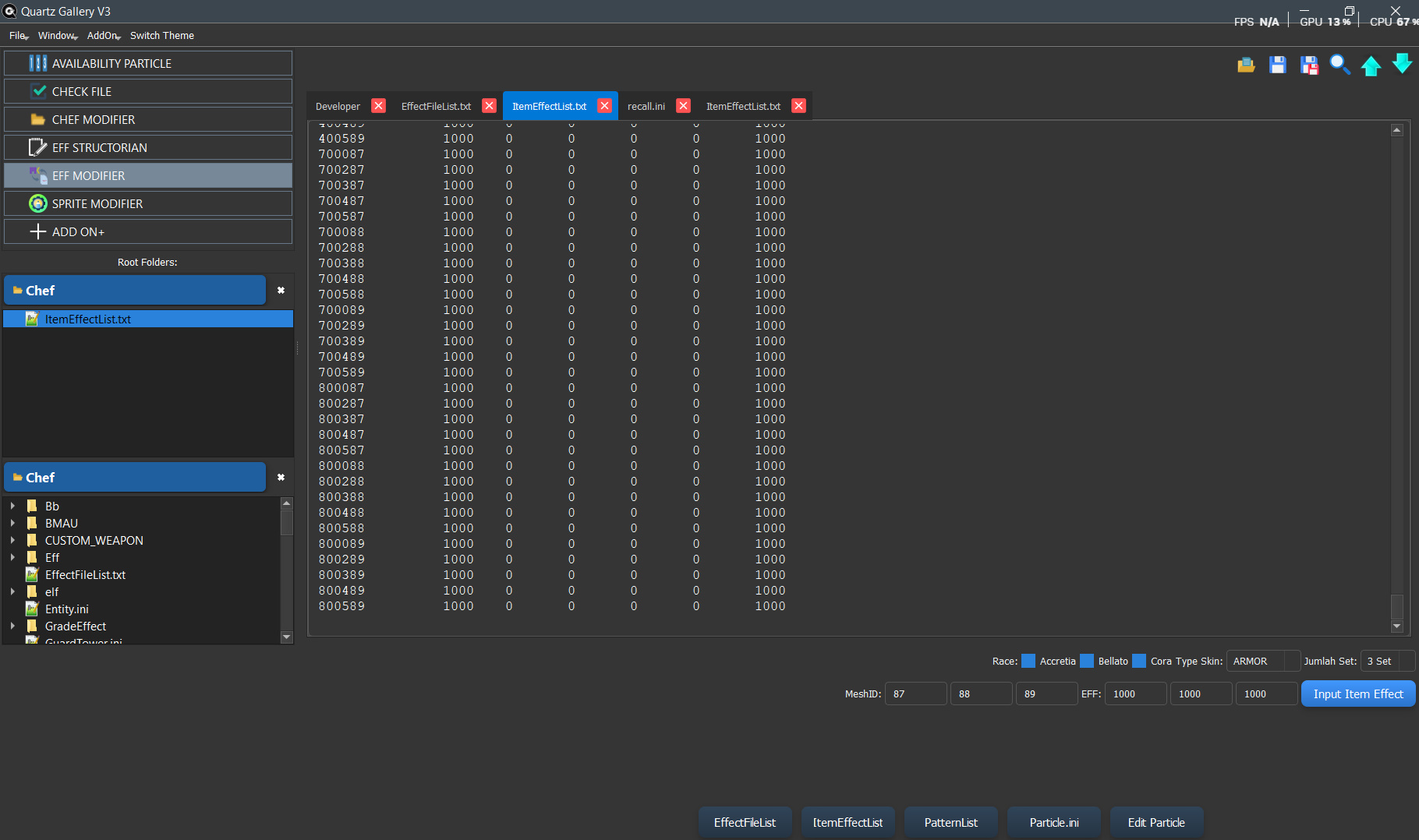
Open and edit TXT, INI, and SPT files in tabs. Search or replace text, move between open files, and save with Ctrl+S. Named files are saved automatically every five minutes.
Editing · Search · AutosaveQuartz Gallery V3 brings editing, file checks, asset previews, and batch tools together in one Windows application. Follow the guides below to find the right tool, even if you have never worked with these file types before.

These are the public QGV3 tools and workflows, grouped by what you want to accomplish.
Open and edit TXT, INI, and SPT files in tabs. Search or replace text, move between open files, and save with Ctrl+S. Named files are saved automatically every five minutes.
Editing · Search · AutosaveTurn on the link button, then click a supported SPT path in Particle.ini or an EFF path in EffectFileList, Monster.ini, or Npc.ini to open the linked file.
Open linked filesRegister shared locations for RF Client, databases, Excel workbooks, Resource.edf, animation assets, and JSON files. The app indexes sources and shows progress in the right panel.
Shared file locationsAdd work folders to the left sidebar, browse supported files, hide unrelated folders, copy paths, and open files with a double-click.
Browse your workCreate connected records for EffectFileList, Monster.ini or Npc.ini, ItemEffectList, PatternList, and Particle.ini. It checks available numbers, builds linked rows, and opens the generated files for review.
Create linked config recordsUse the editor buttons for EffectFileList, ItemEffectList, PatternList, Particle.ini, and Edit Particle to add common records without typing every line yourself.
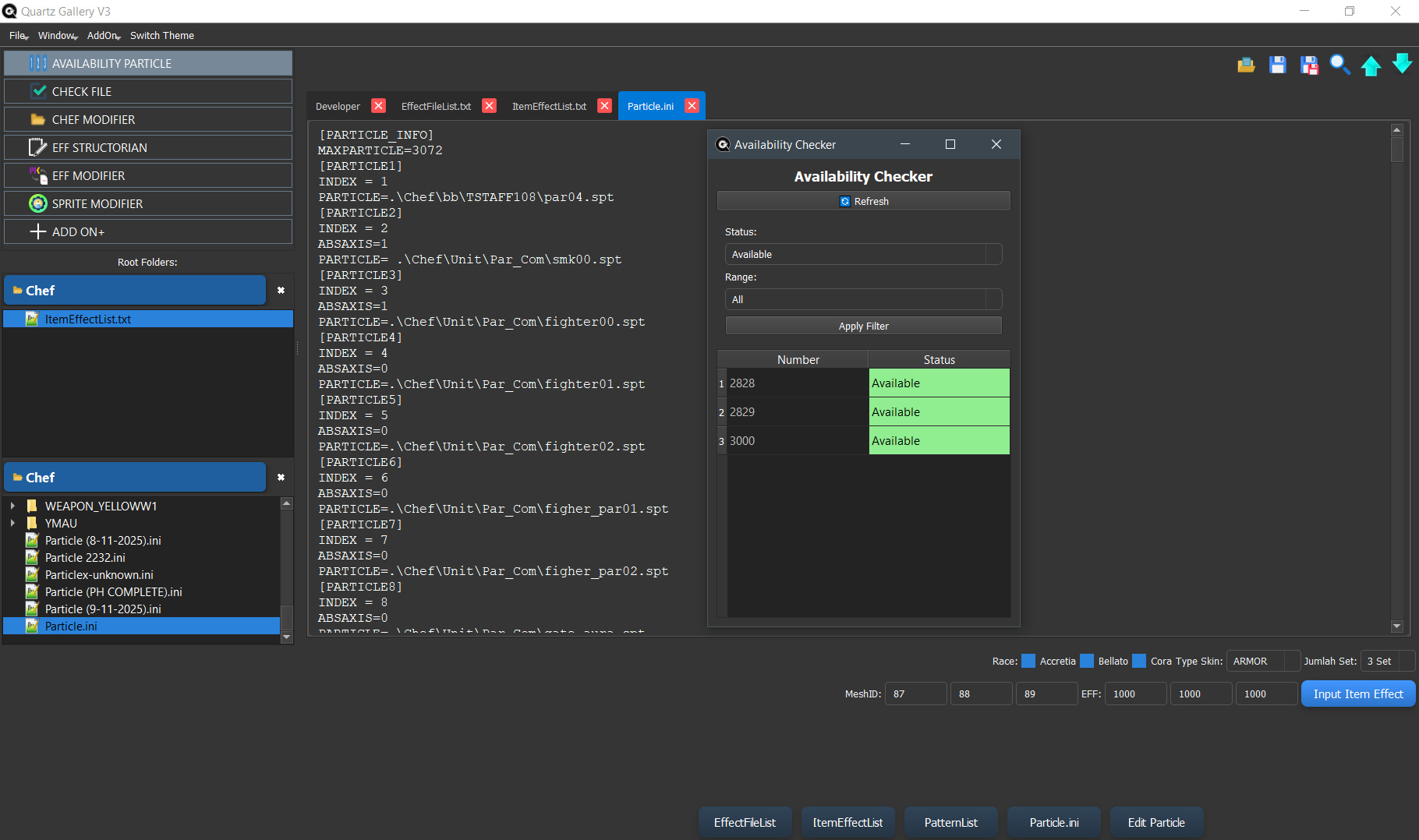
Faster data entrySee which Particle numbers are available or already used in a Particle.ini file. Choose a source file, filter the list, and copy numbers when needed.
Find an available numberRun checks against an open Particle.ini and related data. Review effect, item-effect, entity, and file-path results, then open a result to inspect the source.
Validation and reviewBrowse and preview MSH models. Rotate and zoom the view, inspect textures, and use available skeleton and animation sources to see a model in motion.
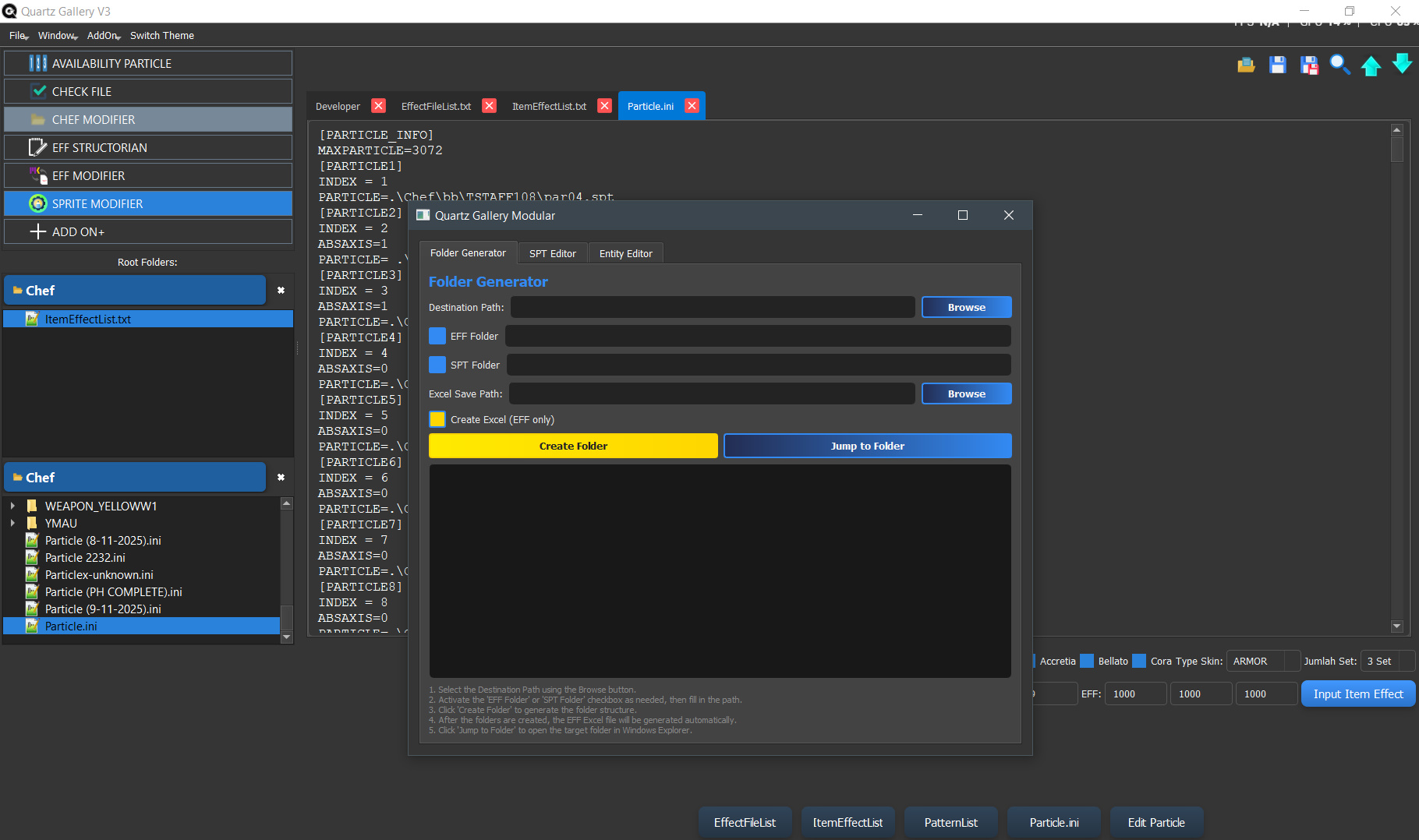
Model and animation previewUse several specialist tools from one window: Folder Generator, SPT Editor, Entity Editor, EFF Modifier, and Particle Organizer.
A group of editing toolsCreate an organized Chef folder structure, prepare EFF or SPT folders, and optionally create a starter Excel sheet for an effect.
Folder setupFind SPT files and update selected text across a folder. Open a Particle path directly, review changes, and save the edited files.
Batch SPT editingReview entity references from SPT files, check whether the referenced files are present, and apply changes to selected entries.
Entity file managementConvert EFF records to Excel, edit or map values, then save or convert the workbook back to EFF. Batch workflows are available for supported tasks.
EFF conversion and editingReview Particle blocks, identify duplicates or missing numbers, sort entries, and save a cleaned Particle.ini.
Particle list cleanupOpen EFF files and Excel sheets in a table. Inspect records, edit cells, add or remove rows, and save the result.
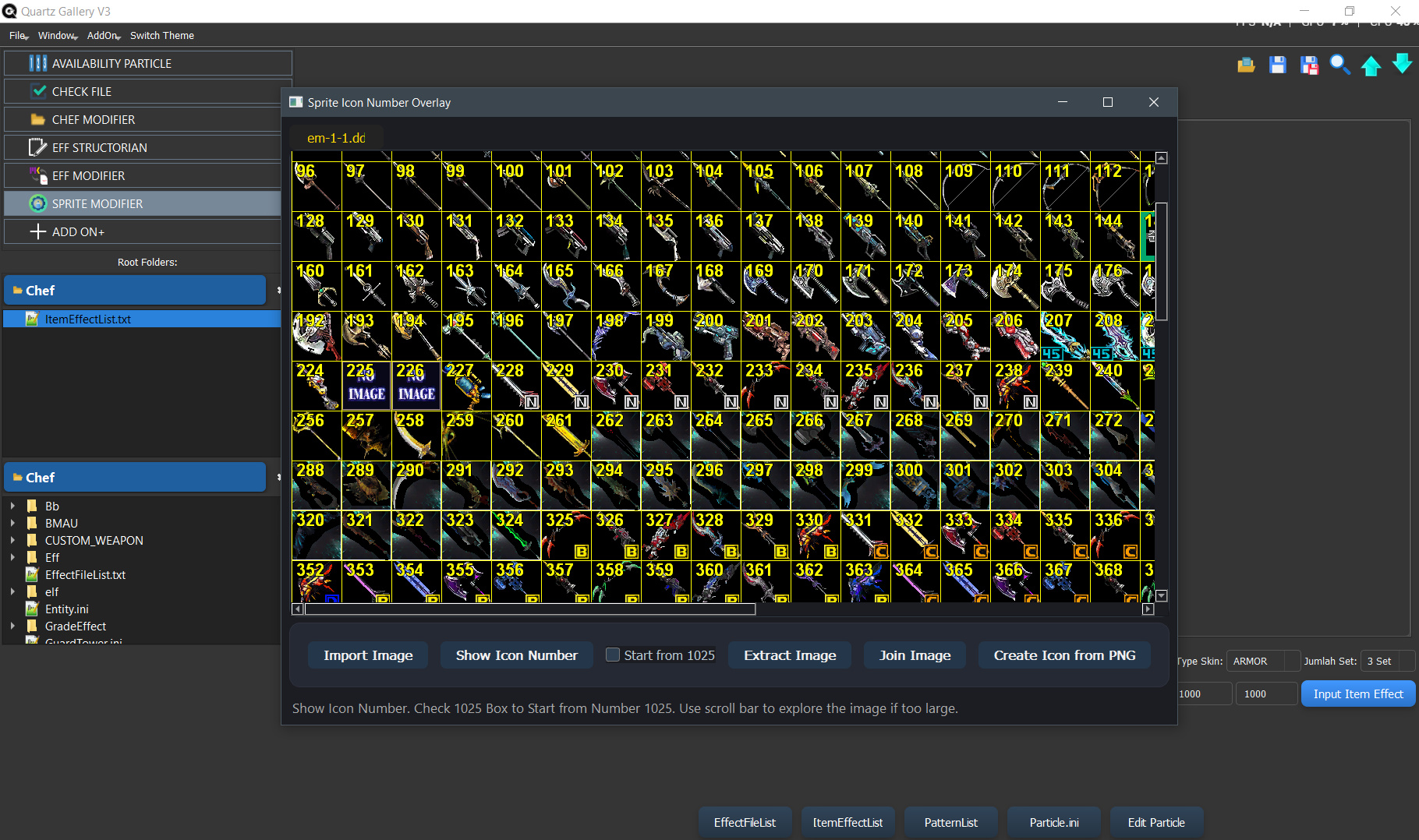
EFF / Excel table editorLoad sprite images, view their grid, extract individual images, join images into a sheet, or create an icon from a PNG.
Sprite and icon imagesLaunch RF Killer, Item Duplicator, Icon Creator, Particle Remap, HxD Batch Editor, R3T ↔ DDS Converter, and SPR ↔ DDS Converter from ADD ON+.
Included with the appRestore or close tool windows from the right-side Minimized Windows panel. Repeated windows are labeled so you can tell them apart.
Window managementBrowse screenshots of Quartz Gallery and its tools.
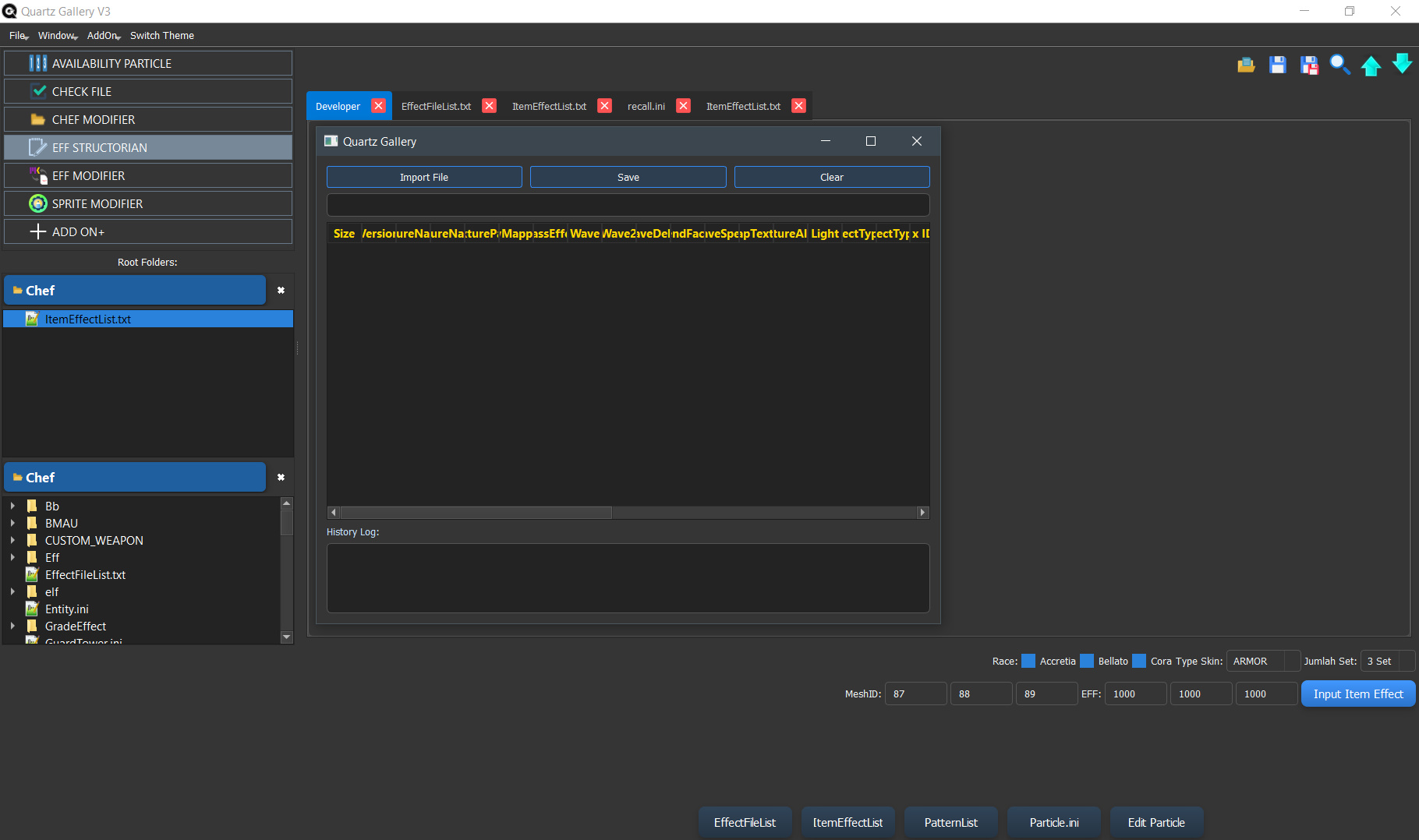
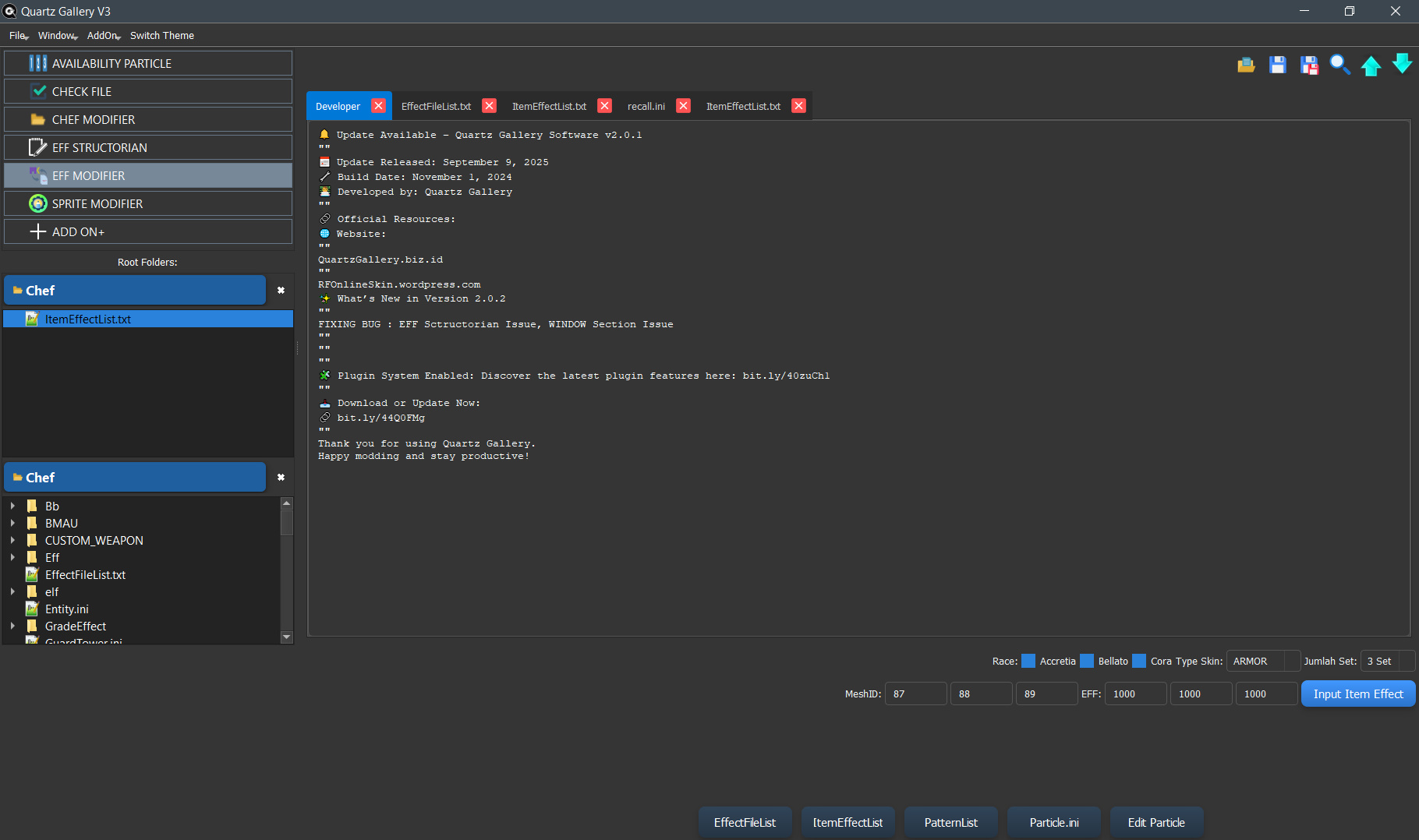
You do not need programming experience. Set up your file locations, open a file, and choose the tool that matches your task.
Start the app. If Windows asks for Administrator permission, choose Yes so the app can work with the files and folders it needs.
Click Master Source on the left. Add your RF Client, database, Excel, Resource.edf, or animation locations and click Save. Wait for indexing to finish.
Choose Browse to add a folder to the left sidebar. Open it and double-click a text file to show it in the main editor.
Use the matching tool for your task. Press Ctrl + S to save an edit. Named files in the main editor are also saved automatically every five minutes.
Each tutorial opens on YouTube in a new tab.